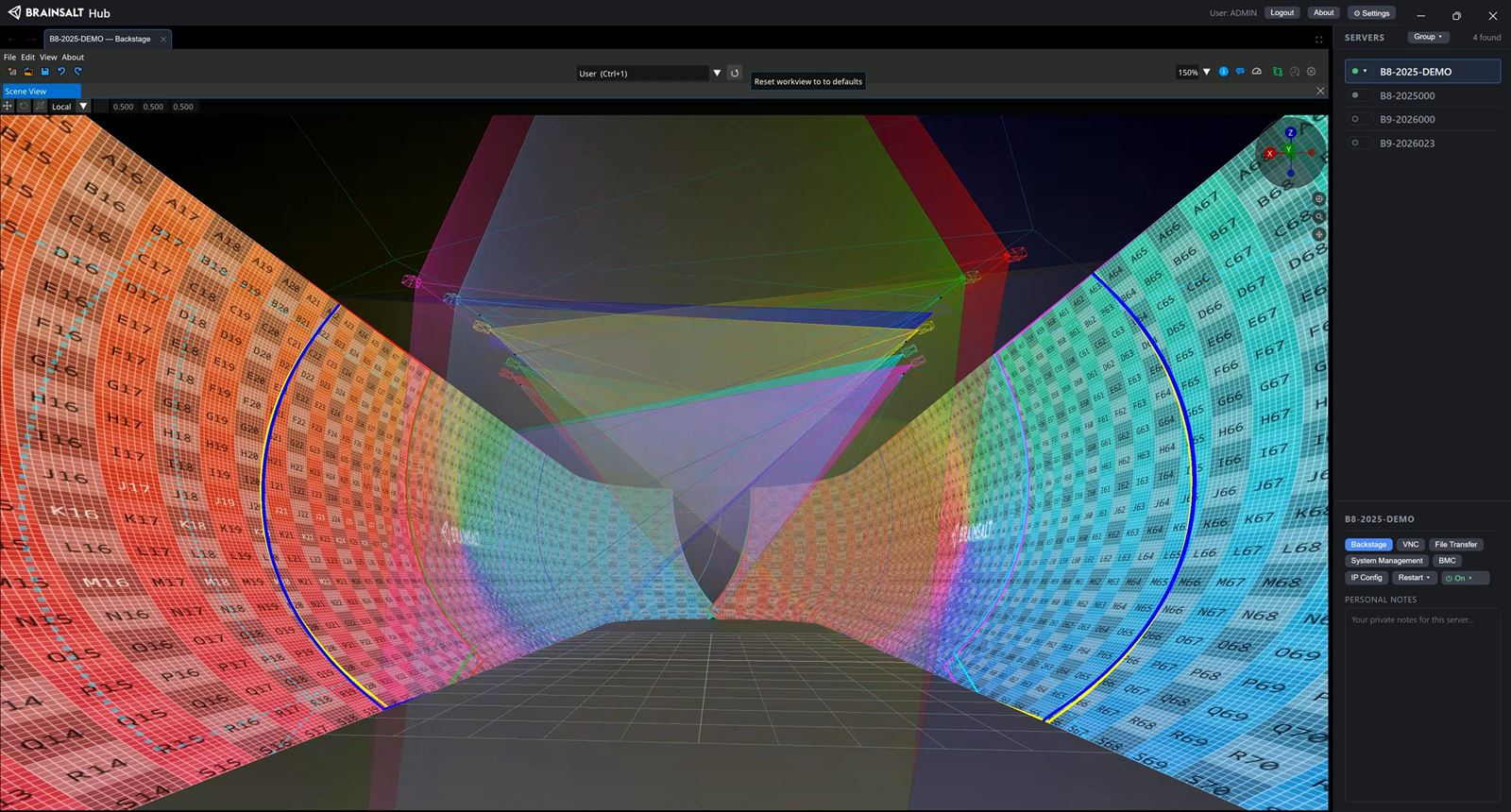
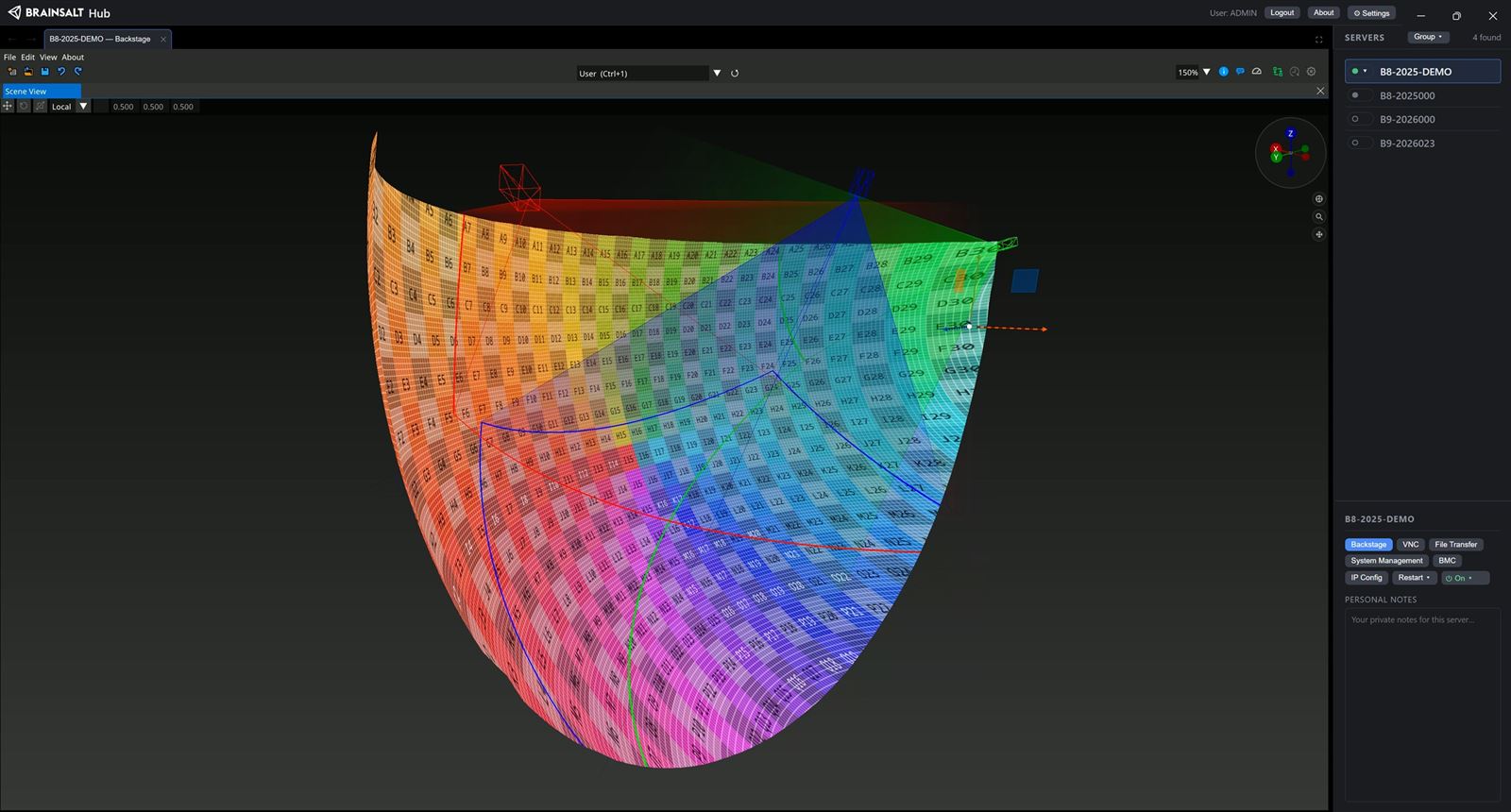
Backstage builds and runs the show. It is where the venue is modelled and the picture is fitted to its real surfaces, where content is arranged in time, and where the logic that drives it all is programmed. It is also what plays the result, day after day.
The server is the hardware under it, prepared first in Brainsalt Hub — addresses, displays, users, power. Anything about the machine is the Hub; anything that reaches a screen is Backstage.
Backstage separates three things: where content appears, what the content is, and what decides when it plays. That separation is the product’s model, and it is the order of everything below.
Scene — where content appears
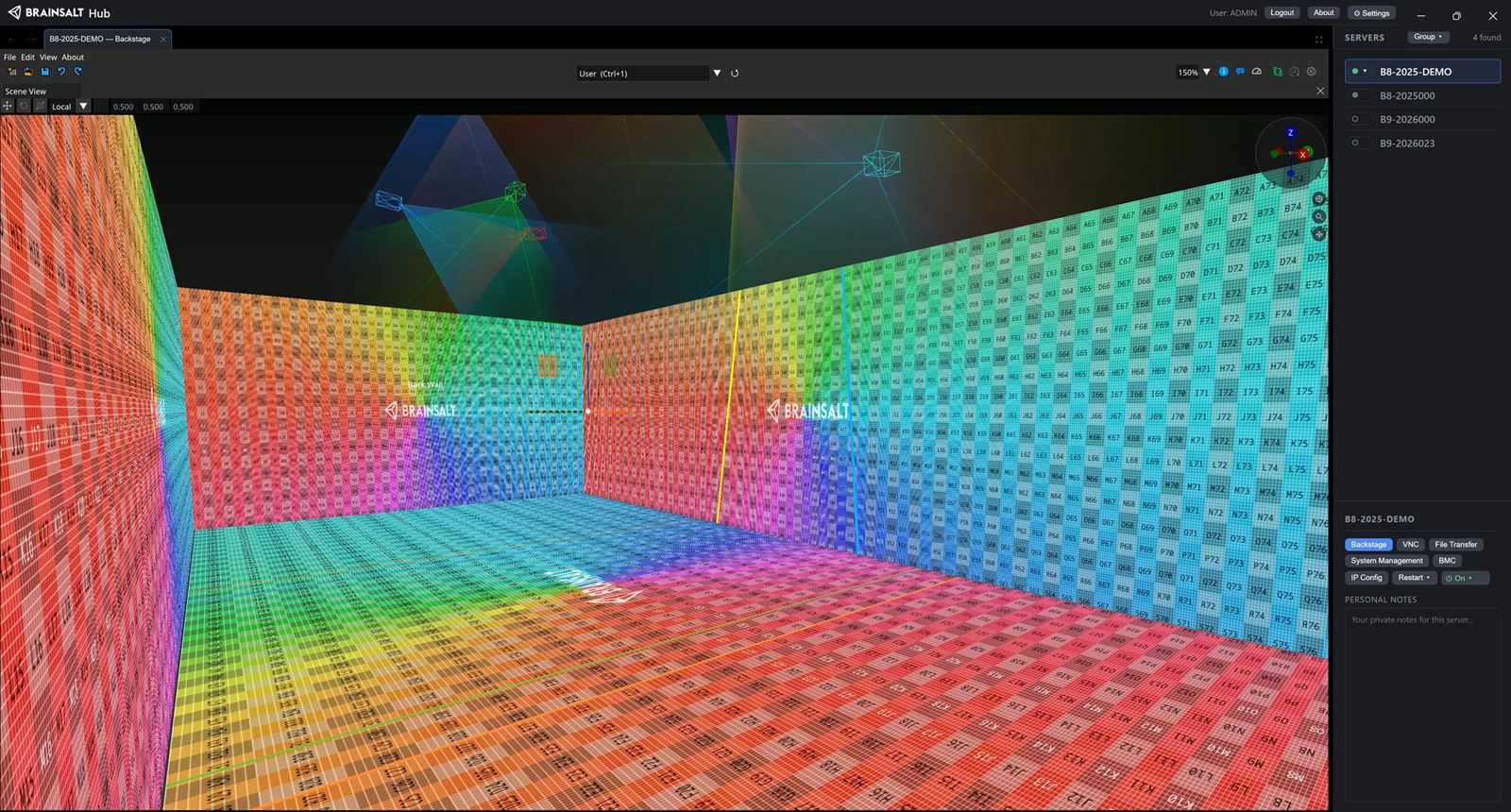
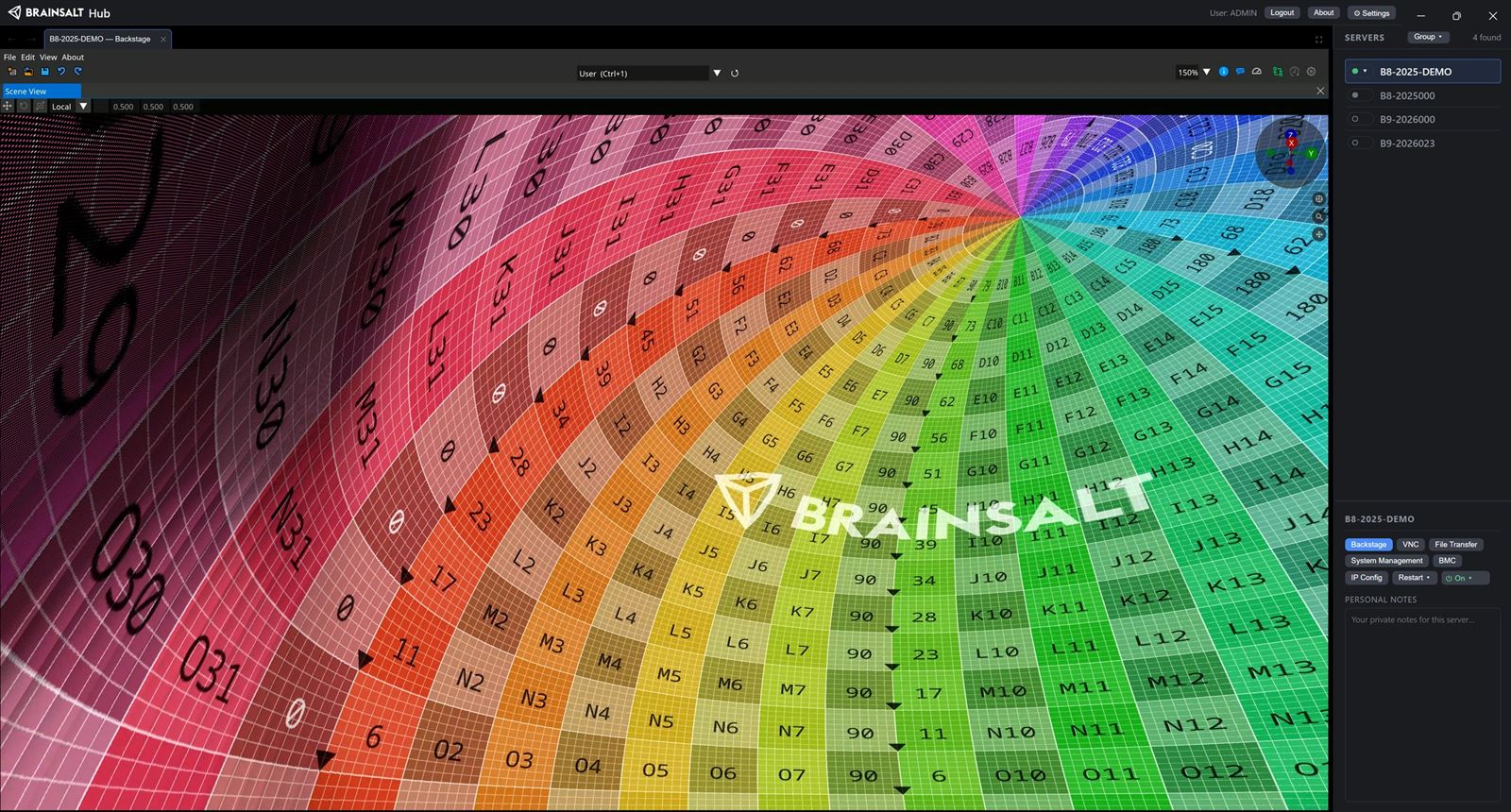
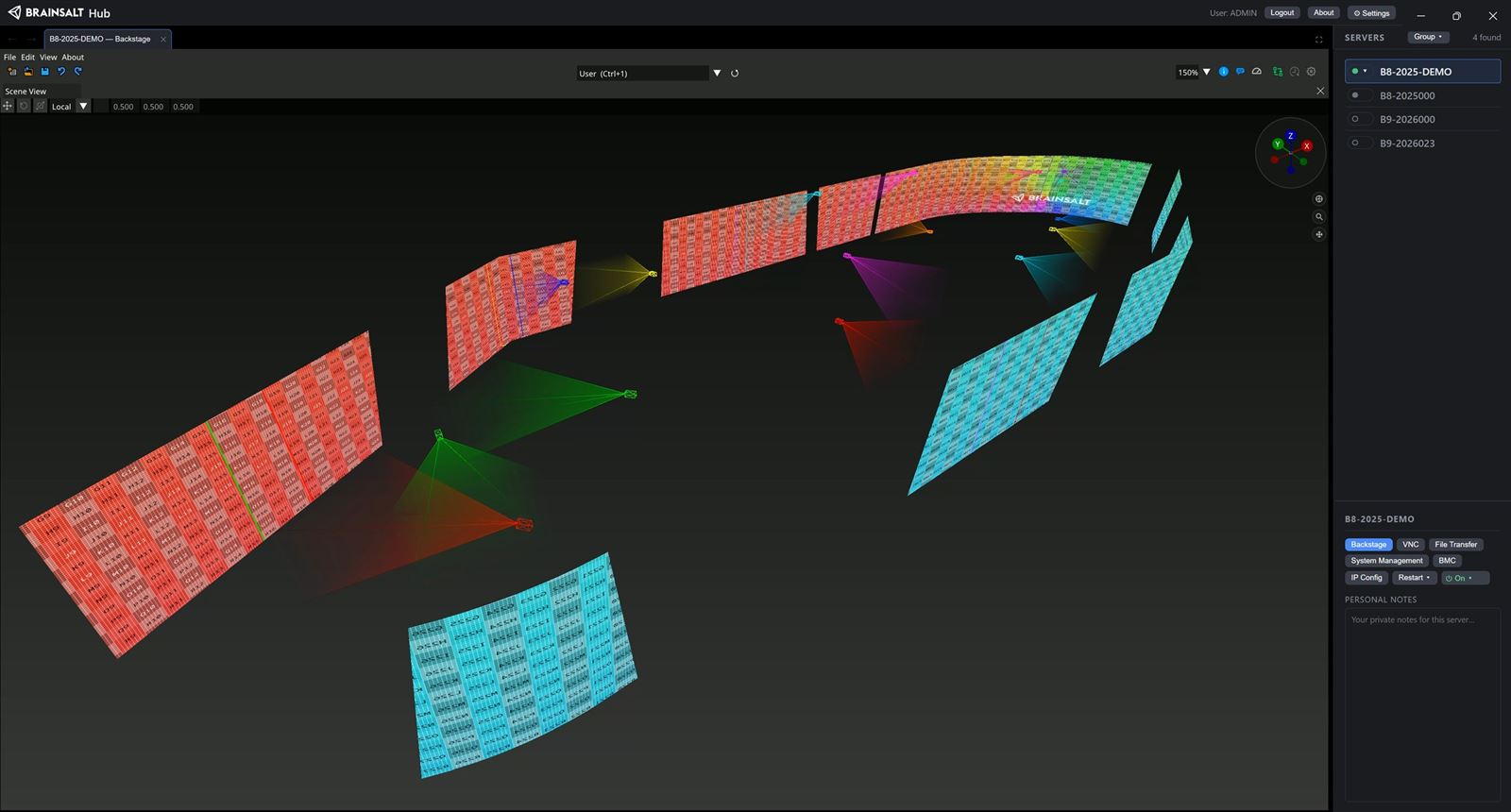
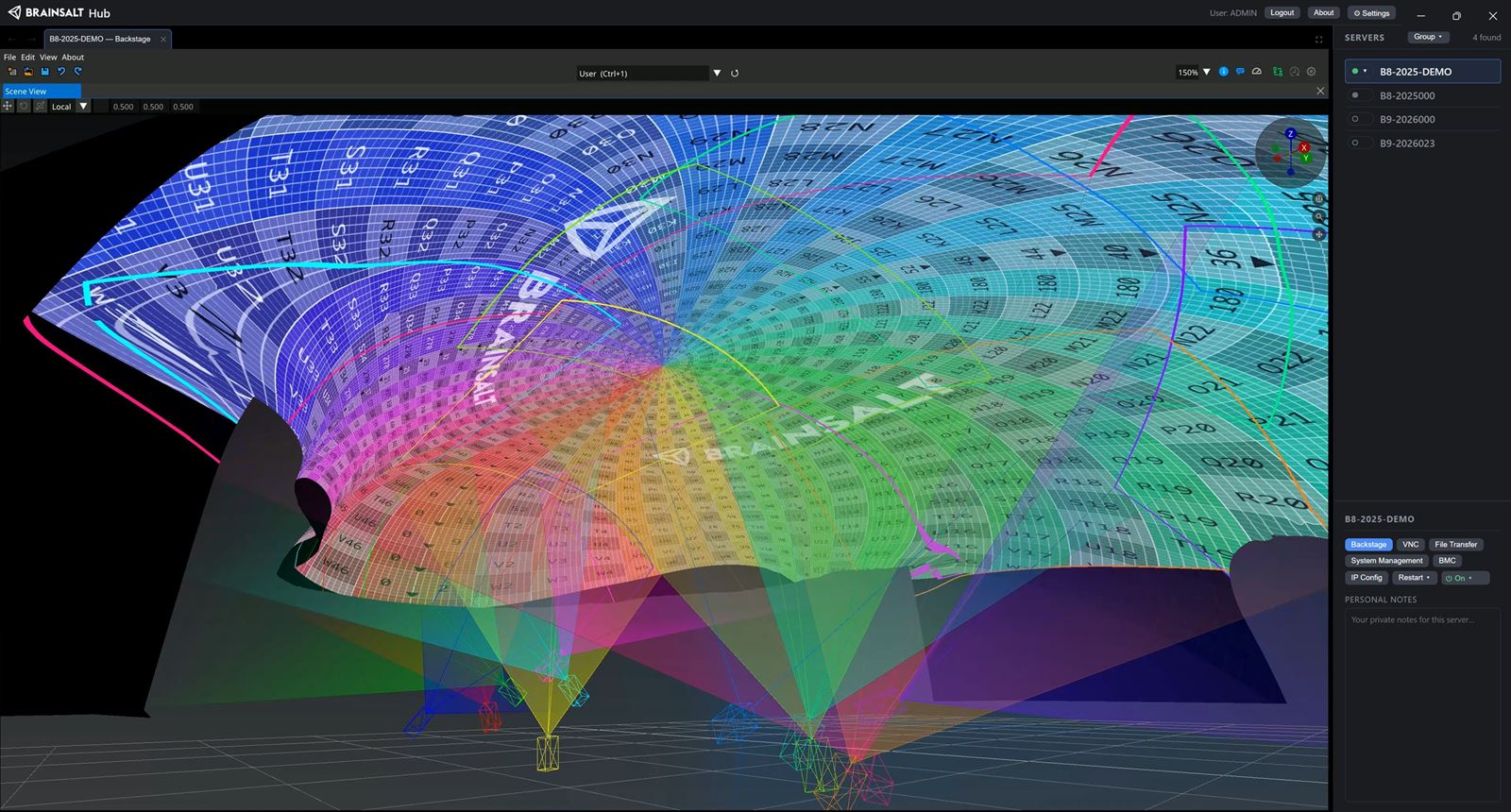
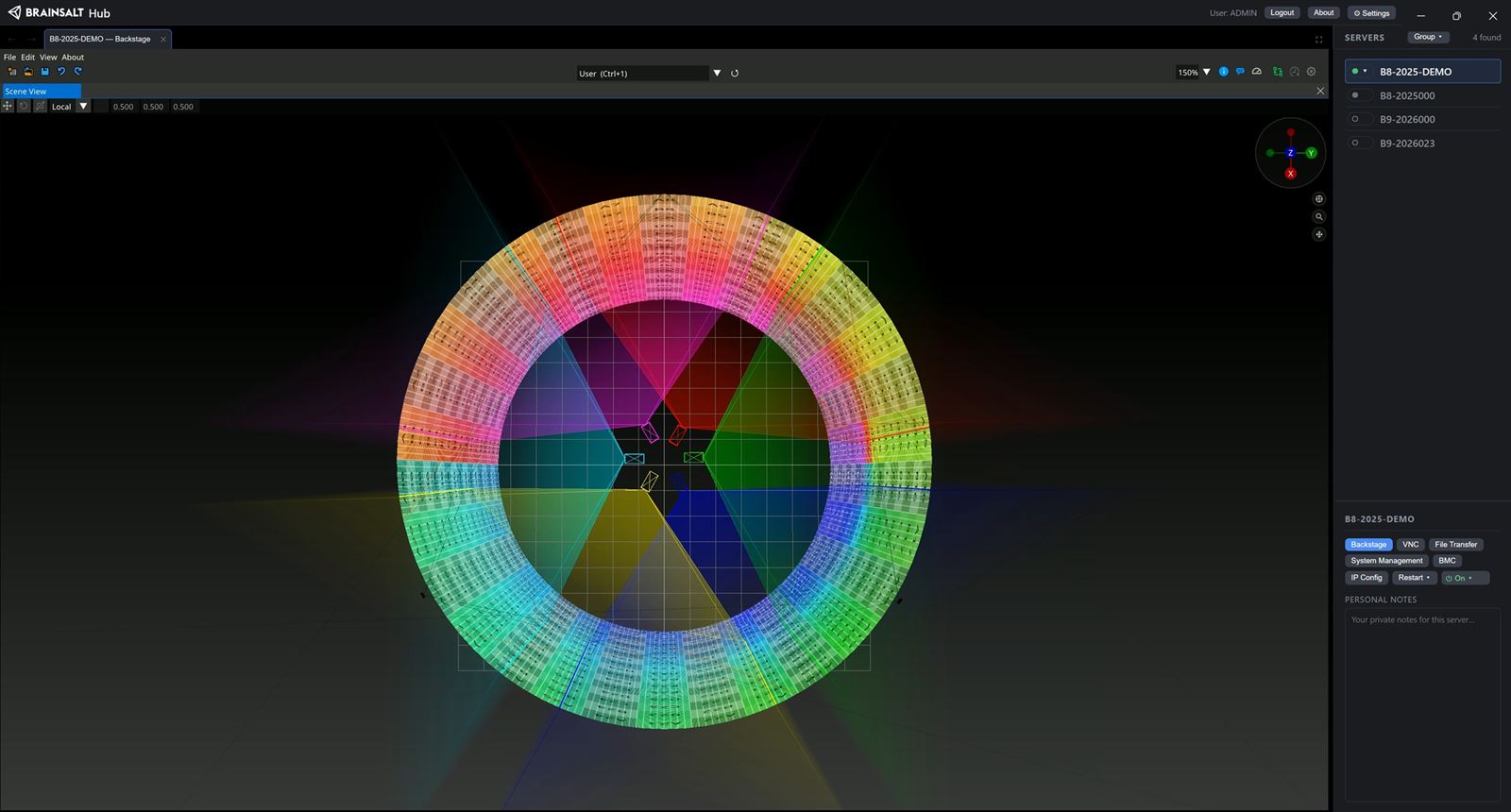
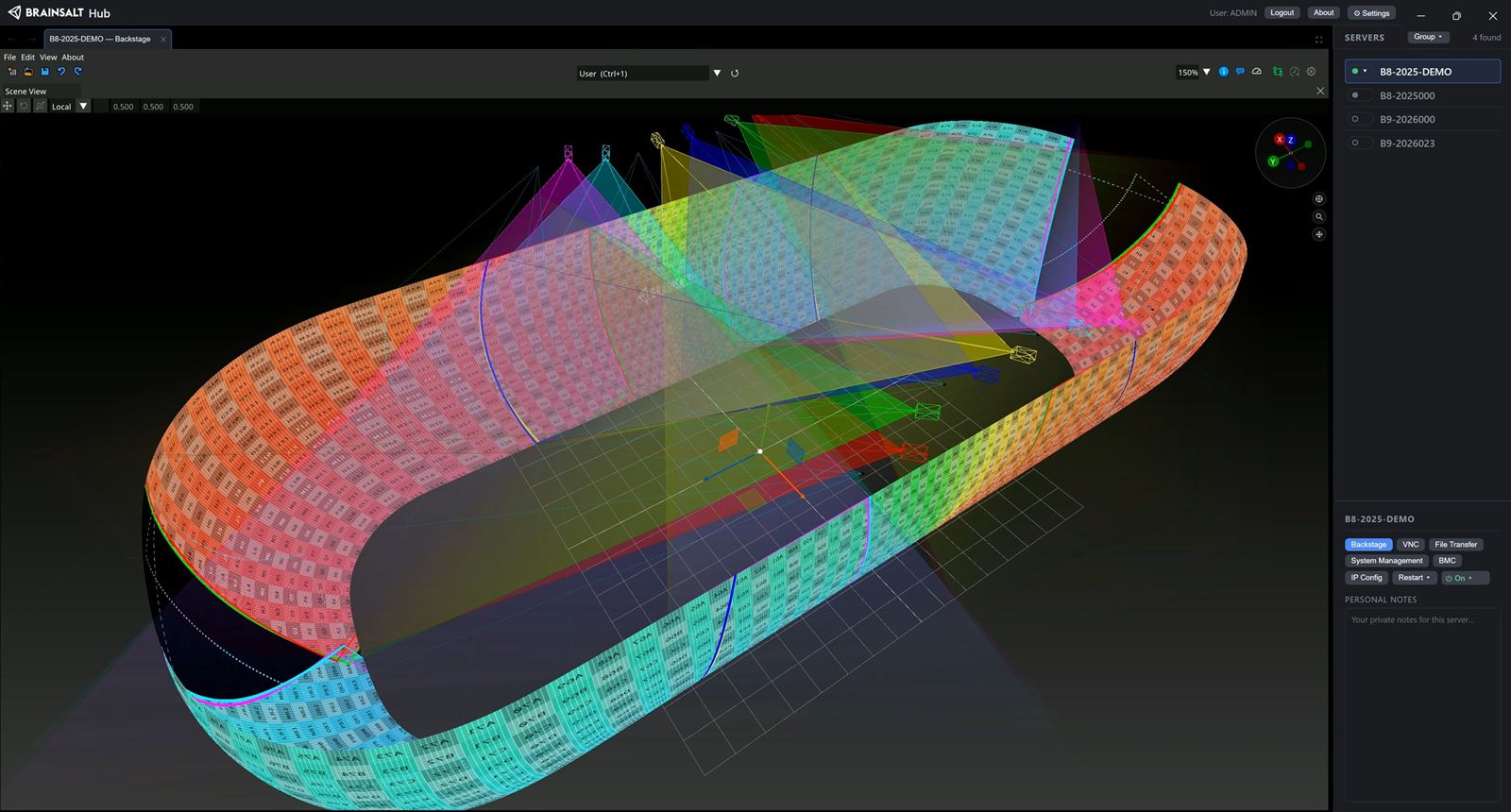
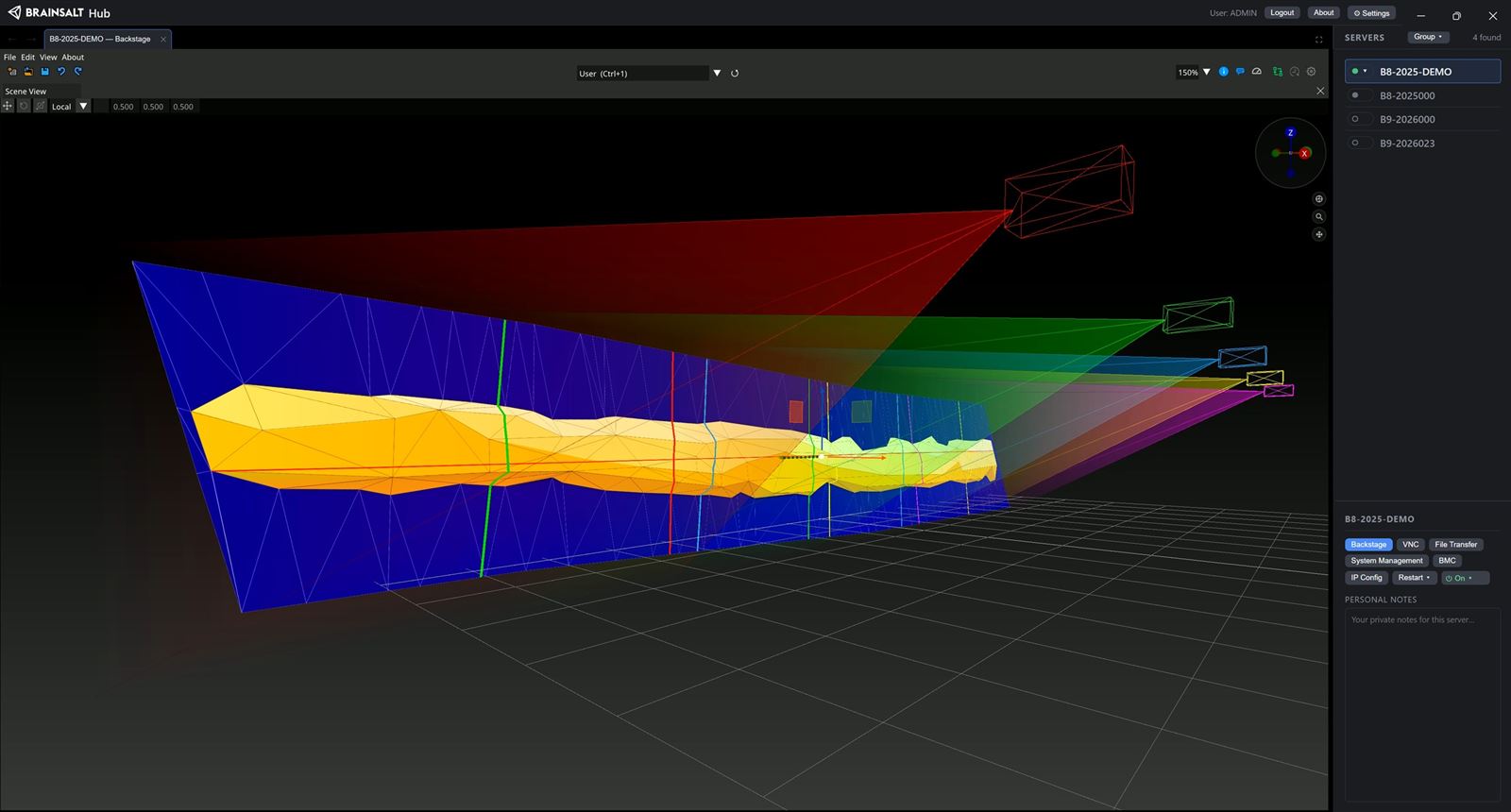
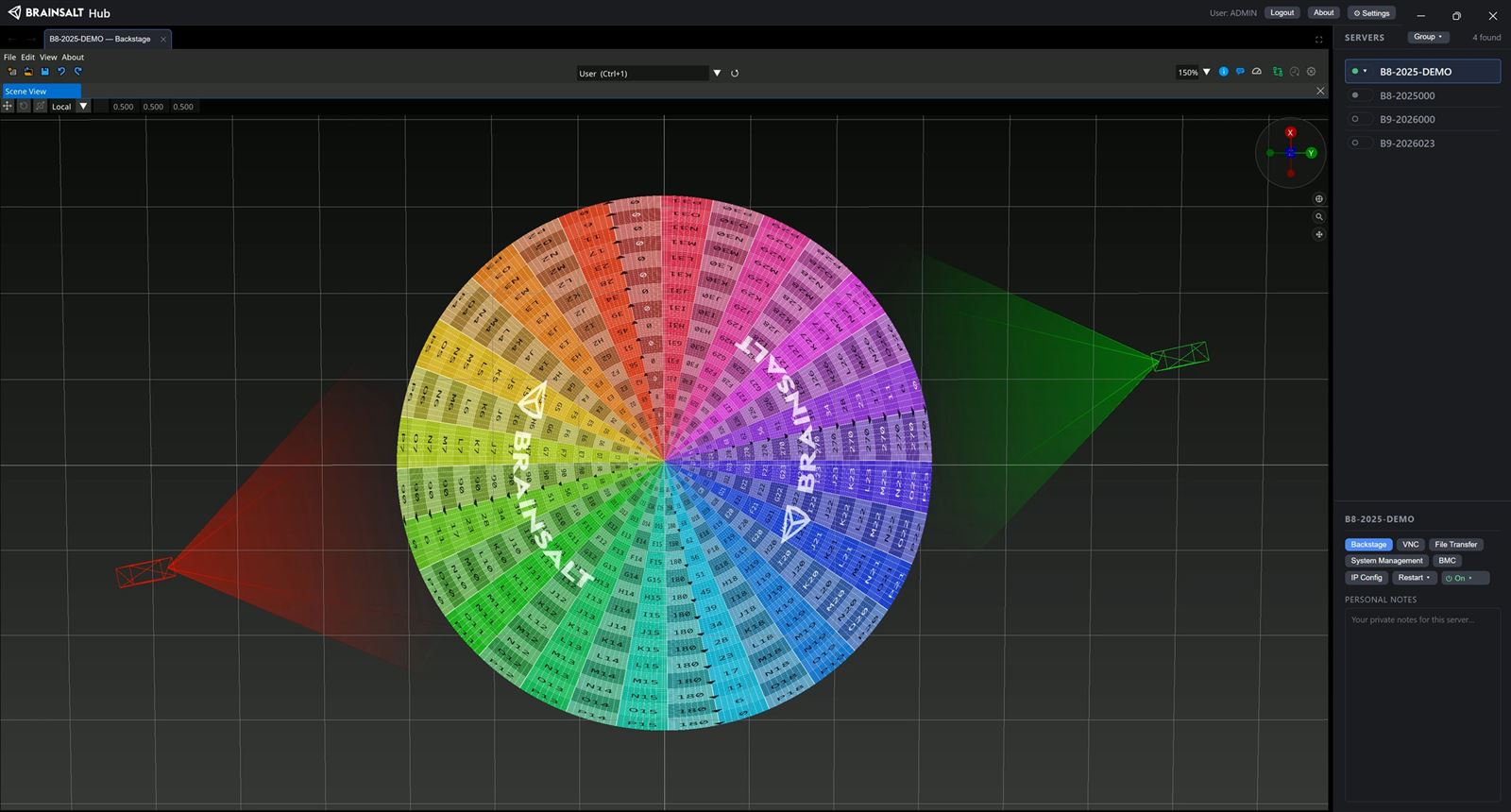
A scene is the set of surfaces the show plays on: projection surfaces and displays, and the projectors that cover them. Surfaces can be flat, curved, dome, spherical, or an imported 3D model.
For projection, the projectors are placed as they stand in the venue. That placement is not decoration: warping and blending are calculated from each projector’s real position and orientation relative to the surface. Displays are addressed in pixels, so placing them to match the venue is optional.
The projection wizard builds a complete projection setup in one step, projectors already aimed, and its parameters stay editable as the design moves.
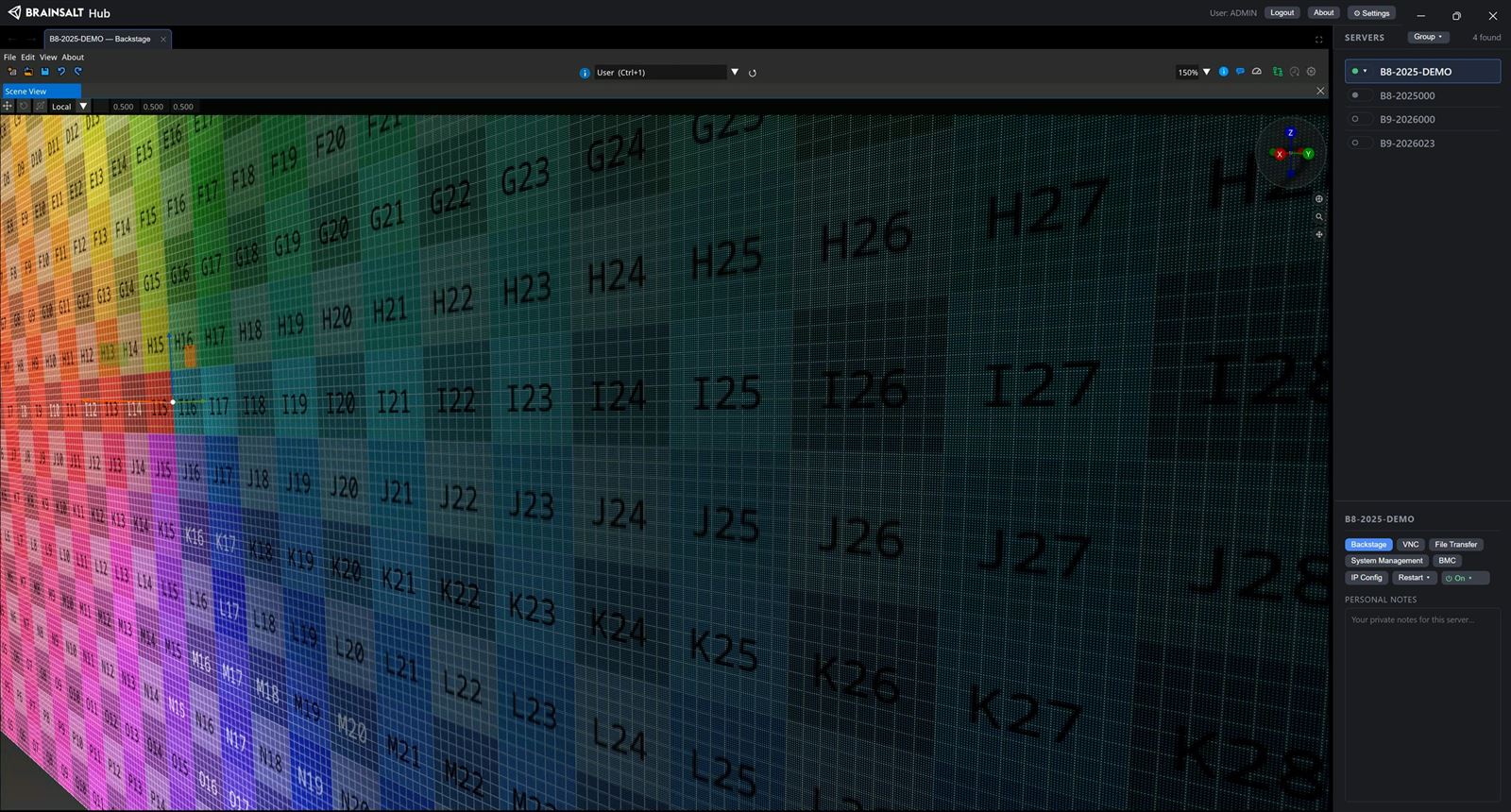
A display surface can be drawn as the LEDs themselves rather than as a continuous picture. The Scene View renders the individual pixels at the pitch and LED size of the product being specified, so content can be judged on the wall it will run on — whether type is still legible at that pitch, and how much of the image survives it — while the wall is still a drawing.
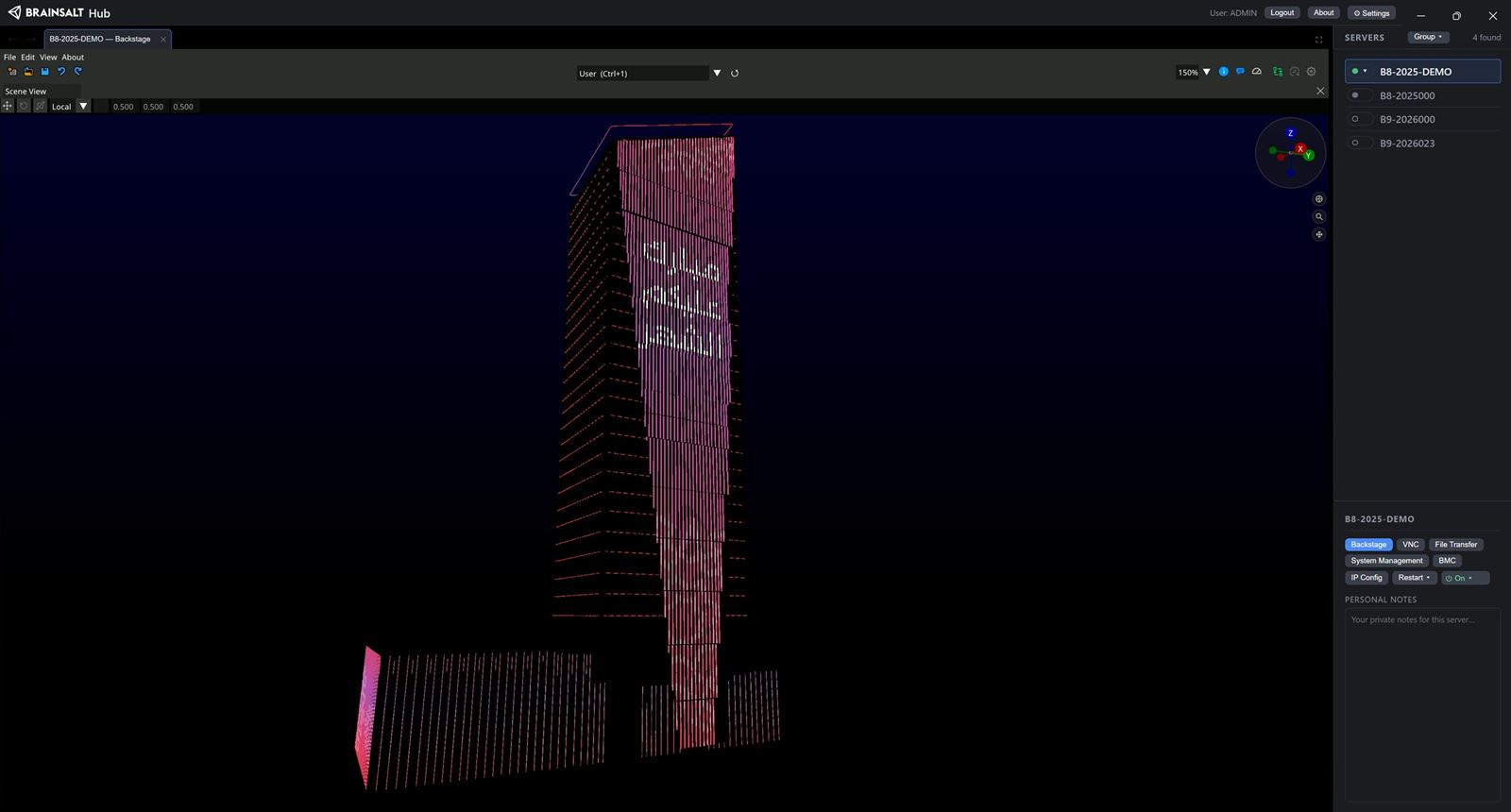
The same works for sparse installations, where the pixels are strips on a building or tubes through a space rather than a continuous panel: one dot per LED, mapped across the faces of the model or along its centreline.
Content — what plays
Everything Backstage plays is an asset: video and audio files, and live sources. Once an asset exists it behaves the same way whatever it came from, so a camera feed and a rendered clip are placed and played identically.
Files are imported directly, one at a time or as a batch. Where a format needs converting first, the Drop Converter on the server takes files in and returns them in a playback format.
Live sources become assets in the same way: NDI over the network, SDI or HDMI capture cards, another application’s window captured from a virtual monitor, and real-time renders from Unity.
Playback — what decides when it plays
A sequence has one or more channels — video, audio, or node datatype. On each channel you place one or more assets, optionally with transitions between them. A video channel renders to a surface through a mapping on it, audio channels feed audio devices, and node datatype channels carry strings, floats and colours into the node editor, so the timeline drives external devices as readily as it drives picture and sound.
Where a show needs one sequence, that sequence plays on its own. The stepper orchestrates several: a step runs one or more sequences in parallel, and moving from one step to the next runs them in a row, optionally with a transition. Steps advance by hand, by an external trigger, or when a sequence finishes — which is what makes a clean join possible: hold an entrance loop running, then advance at the end of the current loop so the move into the main content lands on a seam rather than a cut. A step can also jump straight to another step, fading a capture overlay in over a background that never stops and out again on the next step.
The broadcast scheduler runs a week plan, for venues with fixed daily or weekly programming.
Warp, blend and black level
This applies to projection. A display shows content directly and needs none of it.
Geometry first. Warp meshes can be built by hand from planar, cylindrical or toroidal base modes, or generated from a camera: CalibratorLite is built into Backstage at no extra licence and produces warp meshes and projector frustums from a single camera on a planar or cylindrical screen. The separate Calibrator product covers multiple cameras, any screen shape, and black level.
Where projectors overlap, both are lighting the same pixels. Blending ramps each one down across the overlap so the join disappears.
Black level is optional, and worth deciding rather than assuming. Continuously bright content never shows the black floor; dark content shows the overlaps as brighter patches on an otherwise black screen. It is measured with a camera, and there is no by-hand alternative worth attempting — DLP projectors emit light outside the addressable pixel area, which no amount of work on the content side can compensate for.
Output
Routing connects the scene to hardware: each projector and display to the GPU output it is cabled to. Until that is done a scene can be entirely correct while the screen stays black — which is also why a project can be built and its content played anywhere, and routed only once it reaches the installation.
Audio is routed the same way. An audio output is created for the device and channel count in use, and whatever should reach it is connected. A matrix mixer covers the cases where the channel counts going in and coming out differ, or individual channels need adjusting on the way.
Art-Net and sACN make a third kind of output: image pixels mapped to DMX channels, so LED fixtures and architectural lighting are driven from the same content as the screens.
An output whose display is unplugged or moved can be recovered with its routing, warp and blend intact, and an output can be switched off without being removed.
Show logic — the node editor
The node editor is Backstage’s visual programming surface. Where a show needs logic the built-in windows do not cover — a custom trigger, a conversion between protocols, a control of your own design — it is wired here.
It is not a stage in the build order but a tool used across them. A graph can start and drive a sequence, patch Art-Net, answer a UDP command, or put a switch on screen.
Templates cover the common jobs — network parsing, sequence control, audio routing, string handling — so a graph rarely starts from nothing.
A Presenter area exposes only the controls one show needs and hides the wiring behind them, inside Backstage’s own interface, locally or over a streamed session.
Remote control
A finished show is driven from outside Backstage by one of three routes, chosen by what is doing the driving.
The JSON show-control protocol is the standard interface: a control system drives the show over TCP or UDP, and everything reachable is reachable through it. Sequence transport, position, speed and fades. Stepper transport and step selection. Audio levels and mutes. Alignment and black-level passes. The week plan. NDI input routing. And any endpoint a graph of your own chooses to expose. It is off until enabled.
A Web Console is for a person rather than a system: a page built in Backstage and served to any browser, with no Backstage interface involved. A node-editor graph covers whatever the first two do not.
Alongside those: OSC, for show-control applications and lighting desks that speak it. Plain UDP triggers from a hardware controller. Control surfaces driven over the JSON protocol, with feedback and ready-made presets. And Art-Net or sACN channel values exchanged with a lighting desk in either direction — which is a different job from driving fixtures as pixels, and that one is an output.
The Automation API is a wider grant than show control. Over HTTP, and with an MCP endpoint for AI agents, it can build scenes and import media rather than only operate a show that already exists.
Monitoring
The Performance Overview is the pre-show check, and it reports per render group: frames per second, total frame time, GPU render time and vsync time, each with its current value, a moving average and the maximum, over a plot of vsync deviation. GPU memory is broken out by heap, by usage category and by pool. The same figures can be laid over the rendered output itself, so a show can be watched while it runs without leaving the scene view.
Each playing stream gets its own panel: scheduling deviation and delivery latency plotted over time, how full the playback buffer is, and a row of coloured squares showing the state of every frame in it. The counters underneath are the part worth knowing about. They separate frames skipped, repeated or jumped deliberately — catching up to sync is a normal thing for a media server to do — from skips caused by render lag, disk read errors, transfers that did not finish, and frames that were not there when they were needed. A single dropped-frame number cannot tell those apart, and the difference is the whole question of whether a show is working as designed or in trouble.
The log makes the same distinction in words. A warning is an expected operational state, almost always something this particular machine does not have: media the project references but this server has not mounted, an audio device the project names but the machine lacks. Nothing is broken, and a project built on another server produces a wall of them by design. An error is a program fault, and those are worth chasing. One fault is reported once rather than cascading, so several distinct errors mean several distinct problems.
Maintenance watches the media drives themselves: read and write performance, and the data ageing that affects solid-state drives over time. On a machine whose job is to read large files quickly and on schedule, that is worth knowing before a show finds out.
Whether an output’s link is up and has the bandwidth for the mode being asked of it, and how the machine itself is doing, are read on the server side in Brainsalt Hub. That side keeps reporting whether or not Backstage is running.
Specifications
Verified against the current build.
Scene and mapping
| Screen surfaces |
Flat, curved, dome, spherical, or an imported model of the real surface |
| Mapping types |
Planar, cubic, cylindrical, spherical, dome, linear fisheye to equirectangular, frustum projection, custom |
| Projection |
Projectors placed as they stand in the venue; the projection wizard builds a complete multi-projector setup in one step |
Media formats
| Uncompressed video |
DPX, SBSM, TGA and TIFF image sequences |
| Compressed video |
NotchLC, also as an image sequence; HAP, HAP Alpha, HAP Q, HAP Q Alpha, HAP R; H.264, H.265/HEVC, AV1, VP9, MPEG-2 |
| Hardware-accelerated decode |
H.264, H.265/HEVC, AV1 and VP9 decode on the GPU, with automatic fallback to software. HAP and NotchLC use both CPU and GPU and do not use the GPU video decoder |
| Still images |
JPG, PNG, TGA, BMP, TIFF, DPX, SBSM, NotchLC |
| Audio |
WAV, AIFF, AAC, MP3, OGG |
| Containers |
MP4, MOV, MXF, MKV, AVI, WMV, WebM, M4V, MPG, TS, M2TS, MTS |
| Processing depth |
8, 10 and 12-bit through the pipeline |
| Playback control |
Real-time tempo adjustment and reverse playback for uncompressed video and audio |
| Encrypted content |
Common encryption (CENC). The Movie Licensing System handles key management on its own; a key can also be entered by hand in the properties of an encrypted asset |
Live and generated sources
| Capture |
NDI over the network, with no extra hardware. ST 2110, SDVoE, SDI, HDMI, DisplayPort, DVI and analogue formats through a capture card |
| Virtual monitor |
A virtual monitor on the server becomes a source, so whatever another application draws there plays as an asset |
| Shared textures |
Spout, and Unity through a plugin |
| Interactive and generated |
Web pages, Notch Blocks with their parameters animated on the timeline, desktop capture, test images, node-driven render output |
Colour management
| Primaries |
BT.601 (525 and 625 line), BT.709, BT.2020, DCI-P3, Adobe RGB, or manual CIE 1931 coordinates |
| Transfer functions |
Gamma with adjustable EOTF, sRGB, SMPTE ST 2084 (PQ), HLG, Log, Linear |
| Output signalling |
sRGB and extended sRGB, Display P3, DCI-P3, BT.709, BT.2020, Adobe RGB, HDR10 (ST 2084), HDR10 HLG, passthrough, display-native |
| Scope |
Set per asset and per output. Passthrough where media and output agree, conversion where they do not |
Output
| GPU display |
Straight feeds, rectangular splits, or custom pixel-mapped layouts for LED and projection |
| Video out |
NDI over the network, with no extra hardware. ST 2110, SDI and HDMI through a playout card |
| Lighting |
Art-Net and sACN, image pixels mapped to DMX channels |
| Application handoff |
Shared memory and shared texture |
| Audio |
ASIO devices, matrix mixer, ambisonic mixer |
| Refresh and resolution |
On a single-GPU server, each output can run its own refresh rate and resolution. On a multi-GPU server, all outputs share one resolution and one refresh rate |
| Frame rate |
Playback runs at the output refresh rate: one frame to one refresh where the media matches it, and frame-rate conversion by frame blending where it does not |
| Recovery |
An output whose display is unplugged or moved is kept with its routing, warp and blend, and reassigned to a live connector |
Recording
| Image sequences |
DPX 8-bit and 10-bit, DPX 10-bit YCbCr 4:2:2 and 4:4:4, SBSM, ZBSM, BSI RGBA and 4:2:0, BMP, raw 4:2:2 and 4:2:0 |
| Video |
MP4 or Matroska, with H.264, AV1 or MPEG-4 video and ALAC, Opus, Vorbis, MP3 or MP2 audio |
| Modes |
Continuous, or one frame per frame-number change |
Stereoscopic
| Containers |
Any supported media type placed in a stereo container with left and right eye, as 2 or 4 channels, then used in the sequencer like any other asset |
| Passive 3D |
Left and right eye on two or four separate outputs, one per projector |
| Single-output modes |
Active 3D, white line code, line-interleaved, column-interleaved, side-by-side, top-bottom |
| Across several servers |
Stereoscopic playout spread over more than one server needs pixel-synchronous output, so genlock into every server is required rather than optional. Frame-synchronous is not enough: half a frame of offset separates the eyes |
| Capture |
Passive and active 3D through a capture card |
Synchronisation and timecode
| Server to server |
Frame-synchronous playback over PTP, self-generated or taken from an external grandmaster: every server agrees on which frame it is showing |
| Genlock |
Pixel-synchronous output. A TTL or tri-level reference into the graphics hardware of every server aligns the scan-out itself, so the same pixel leaves every server at the same instant. Without it, two outputs on the same frame can sit half a frame apart. Requires the genlock option in the server |
| Global clock source |
Free-running, or disciplined to exactly one external source: a PTP clock, the incoming frames of a single capture input, or the ASIO audio hardware |
| PTP profiles |
AES67, IEEE 1588 v2, SMPTE, and a Backstage profile |
| Timecode |
LTC in and out over audio, including ASIO devices. A dedicated timecode card reads timecode directly. A sequencer linked to incoming LTC runs on that timecode rather than on the global clock |
| Where nothing is locked |
Backstage holds the show together in software, steering audio and video tempo continuously by amounts chosen to stay below notice. The clock is steered and never stepped, so a reference that glitches degrades gently instead of showing a skip |
Pixel processing
| Compositing |
More than fifty blend and compositing modes |
| Keying |
Colour and chroma |
| Output pixel mapping |
LED surfaces that are not flat — a dome, a sphere — are mapped down to the individual pixel, so every LED is fed from where it physically sits on the surface rather than from a rectangular approximation of it |
| Projection correction |
Mesh warp, edge blending, brightness correction, and black level correction |
| Combining |
Multiple media composited to a single frame, including render cluster capture |
Show logic and integration
| Node editor |
Visual programming with access to assets, sequencer, surfaces, mappings, mixer and outputs; mathematical and logical functions; generative nodes for subtitles, timecode and text; custom function blocks and operator panels |
| Show control |
A JSON show-control protocol, OSC, and generic UDP and TCP |
| Lighting protocols |
Art-Net and sACN, in and out |
| Automation API |
HTTP, for building and changing a show from outside Backstage |
| Operation |
Headless, with the interface streamed to the Brainsalt Hub Desktop App or a browser. It can also be shown on one of the server’s own GPU outputs where a screen at the machine is wanted. Several people work on one server at the same time |
Third-party hardware
Most of what Backstage plays needs no hardware beyond the server. These are the parts where the make and model matter, because Backstage drives them through a driver or SDK of its own.
| Video capture |
Supported capture cards cover SDI, optical SDI, HDMI, DisplayPort, DVI single and dual link, SDVoE, VGA, component, composite and S-Video. Which of those a card offers is a property of the card, and the interface offers only what the installed card reports |
| Video playout |
One supported card family plays out as well as captures, over SDI, optical SDI, HDMI, and ST 2110 over Ethernet or optical Ethernet. A model that does both can serve both at once |
| Timecode |
LTC in and out over any audio input, including ASIO devices. A dedicated timecode card reads timecode directly. PTP needs no hardware at all |
| Audio |
Windows audio devices and ASIO drivers. ASIO devices are listed separately and expose the driver’s own panel; that is the route for reliable, low-latency output |
| Clock reference |
The global clock can follow an ASIO audio device or a capture input — one source, not both |
| Camera calibration |
Calibrator Lite works with Canon DSLR and DSLM cameras. Calibrator extends that to GigE cameras. The camera can be attached to the server or to the machine running the interface |
| Notch Blocks |
Licensed by Notch rather than by Brainsalt, on a licence dongle that must be present for a block to load |