Brainsalt Hub sets up and manages every Brainsalt server on the network — addresses, displays, users, power and health — from a browser or from the Desktop App. It ships on every server, so there is nothing to install on the server itself.
Brainsalt Hub prepares the system. Backstage builds and runs the show on it. Machine questions are the Hub; what appears on screen is Backstage.
Configuration
Every configuration step is a page on the server, reached over the network: no physical access to the machine, and no logging into its operating system. We build and maintain that layer, so commissioning is quicker and does not depend on operating-system expertise.
Access
Every Brainsalt server serves its own Brainsalt Hub interface over HTTPS — labeled System Management on screen. A browser on the server’s network reaches it, against user accounts held on the server.
The Brainsalt Hub Desktop App is the other route and a superset of it: discovery, one login across the fleet, and each server’s System Management pages opened without a second sign-in — plus chassis power, the management controller and its console, remote desktop, and an on-demand file share. Windows, macOS and Linux.
Discovery and network configuration
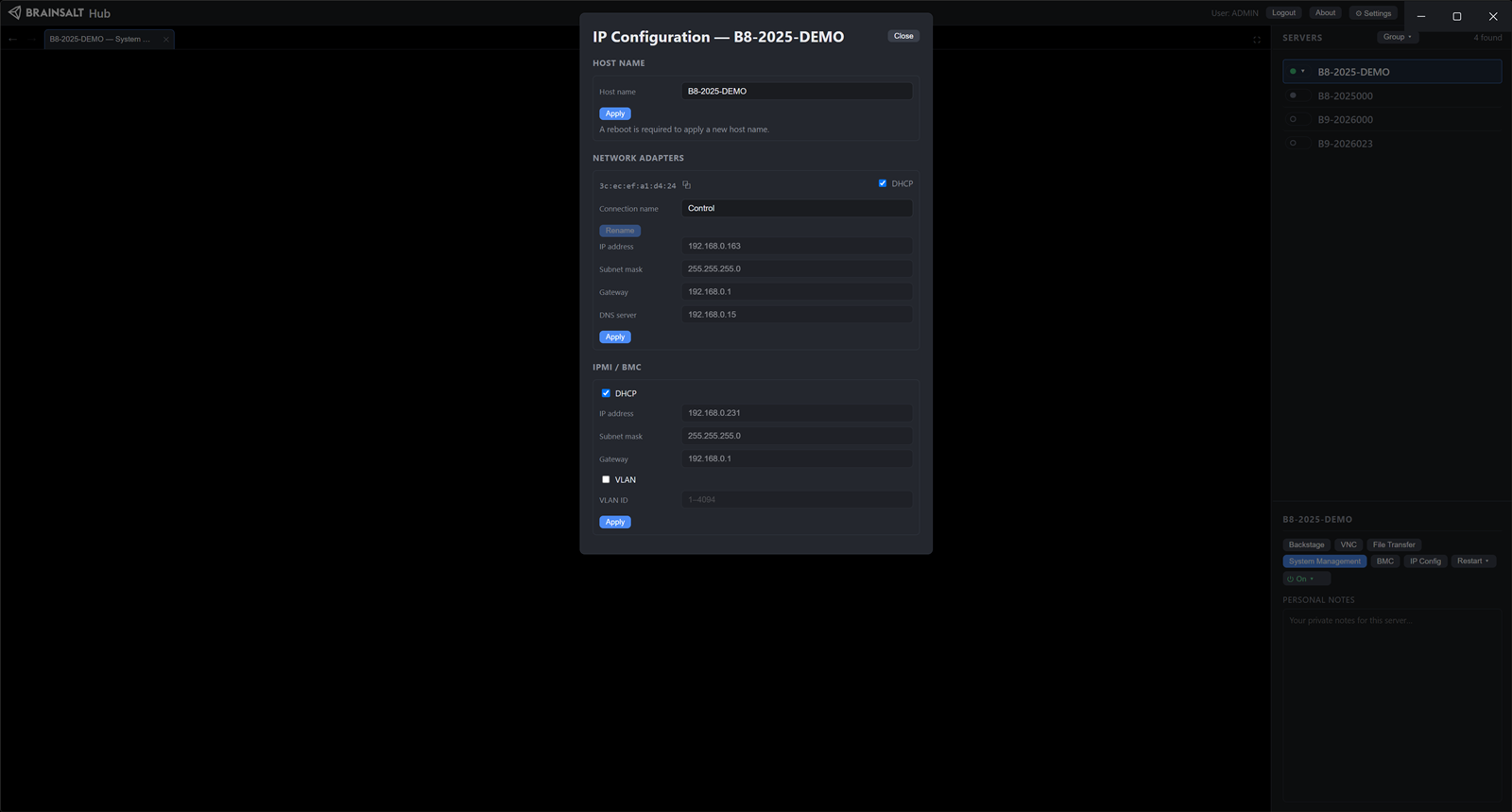
The Desktop App lists Brainsalt servers on the wired network whatever address they currently hold, including one on a subnet the workstation cannot reach. Backstage need not be running on them.
From that list: address, subnet, gateway and DNS server. Adapter renaming. Host name. Management-controller address and VLAN tag. Every change is authenticated.
Display setup
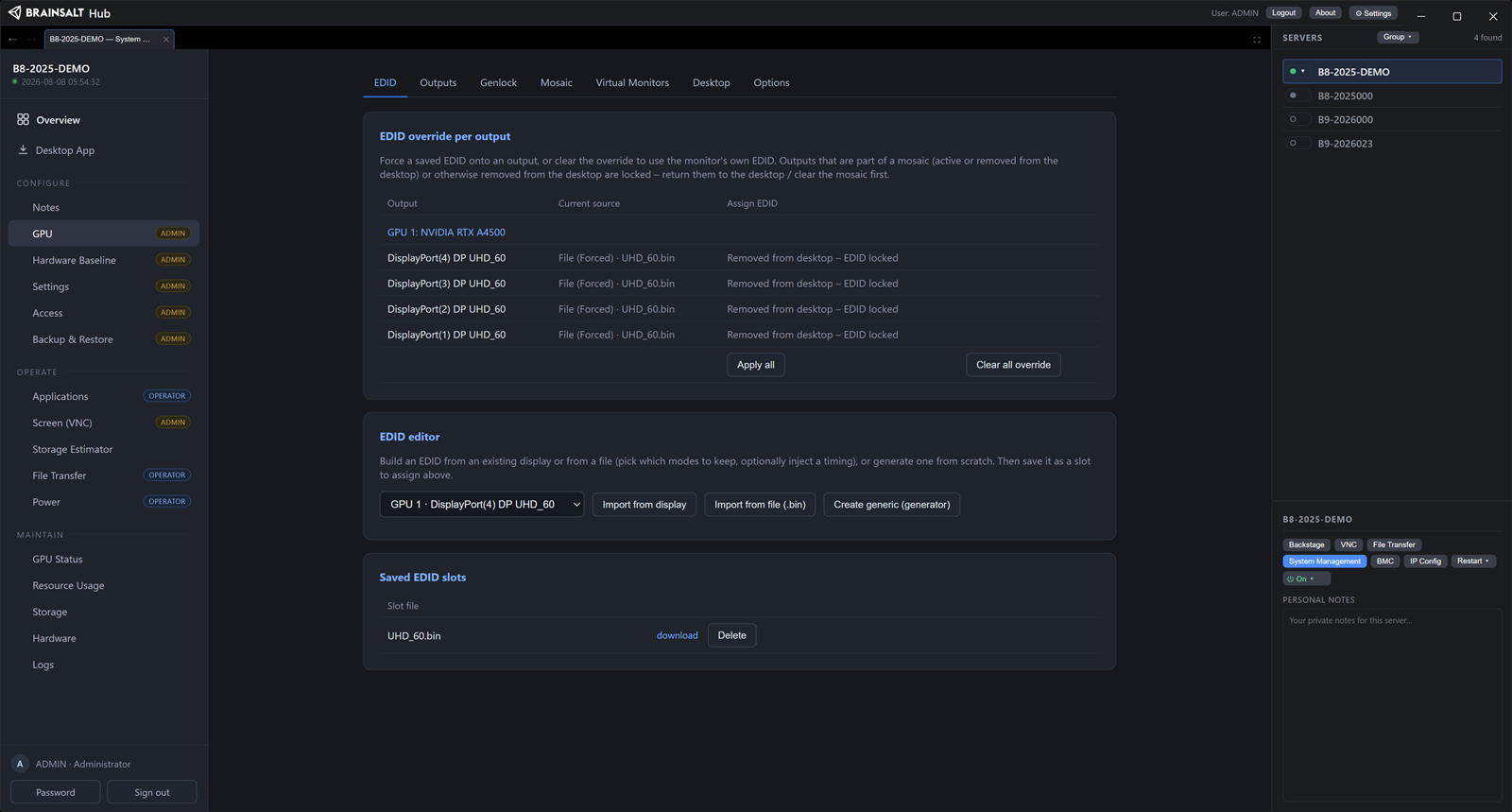
In the Hub, System Management › Configure › GPU.
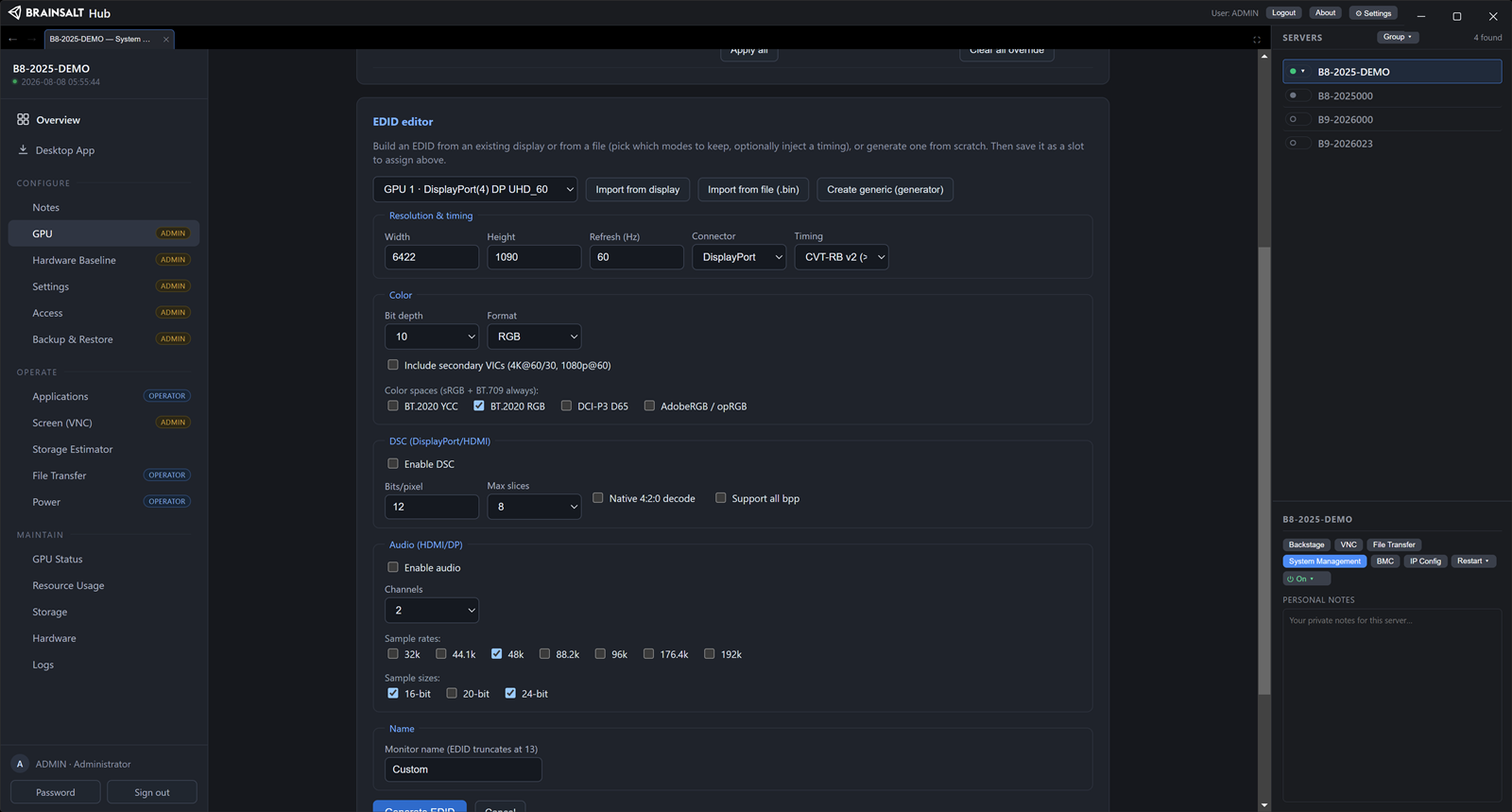
EDID: force a saved one onto an output, import from a live display, load a .bin, or generate from resolution, timing, bit depth, color space and audio. Applied to all outputs in one operation, so the driver verifies custom timings as a set.
Mosaic grids across outputs. Per-output format, bit depth and dynamic range. Virtual monitors as render targets. One-step reset to factory display state.
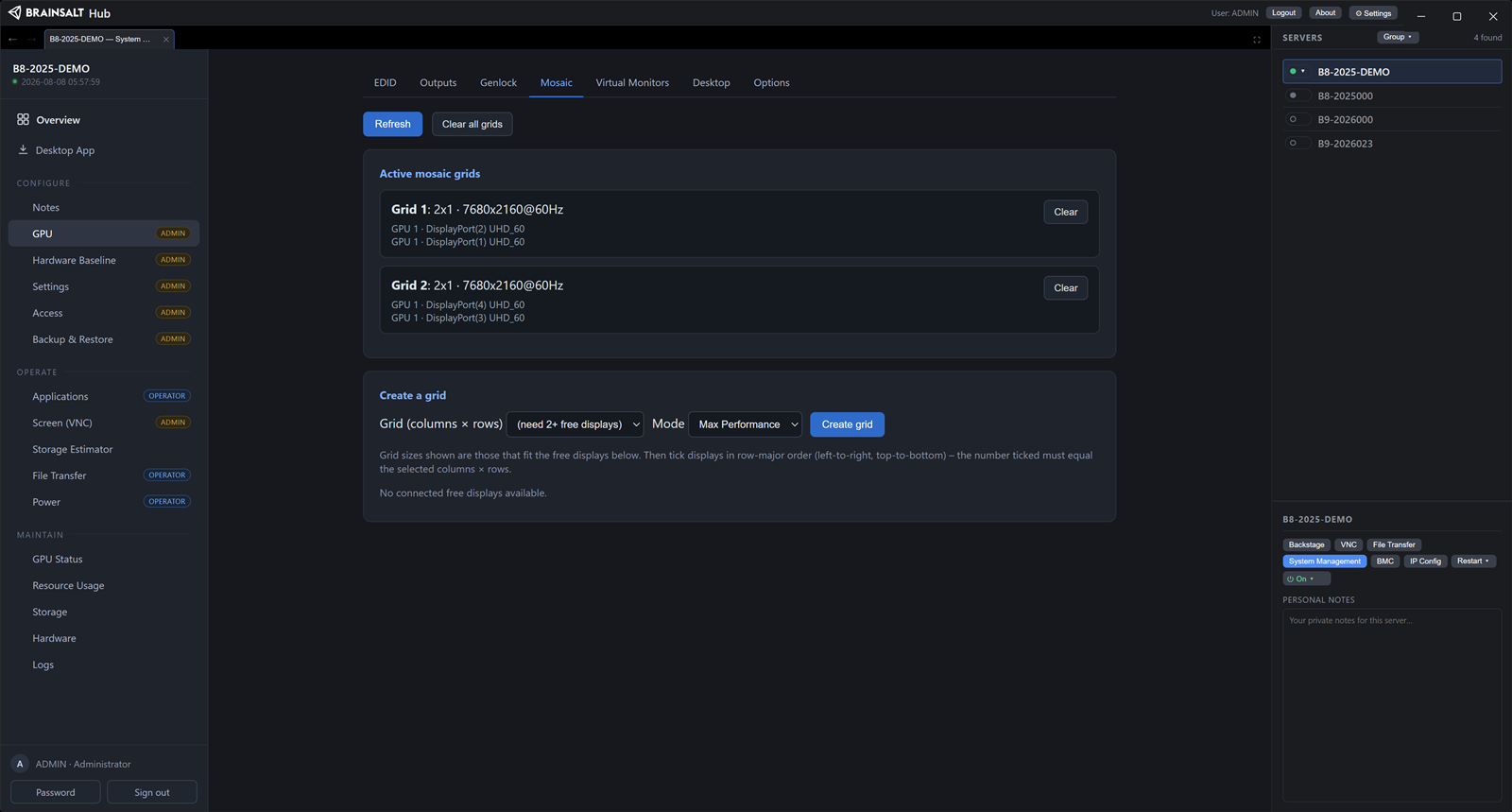
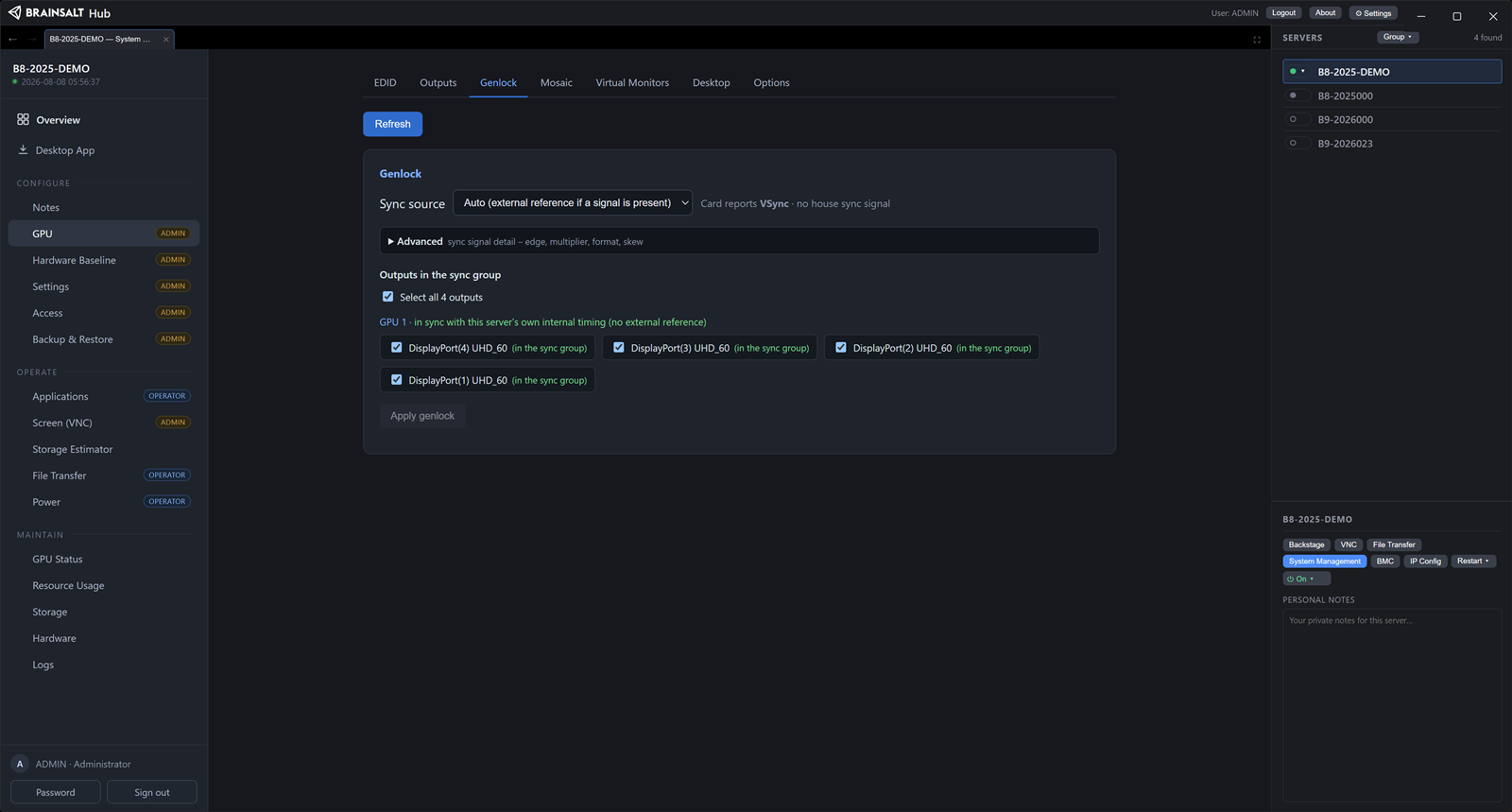
Genlock where a frame-synchronization board is fitted: internal, external house sync on BNC, or automatic. Per-output selection, with the lock status on the page that applied it.
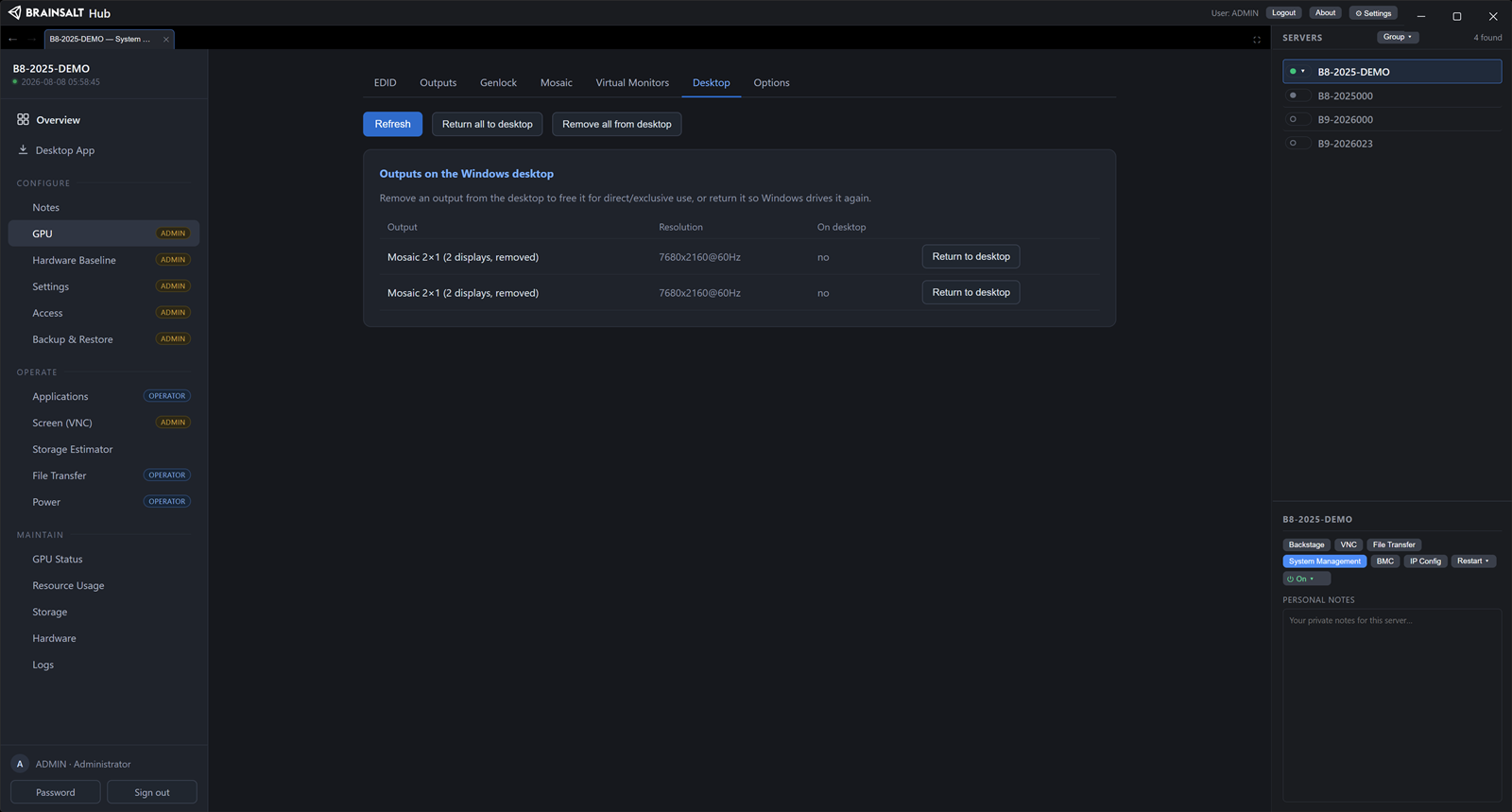
The Desktop tab lists which outputs are currently part of the Windows desktop. Taking an output off it gives the media application exclusive use of that connector, and outputs are returned individually or all at once.
Health and status
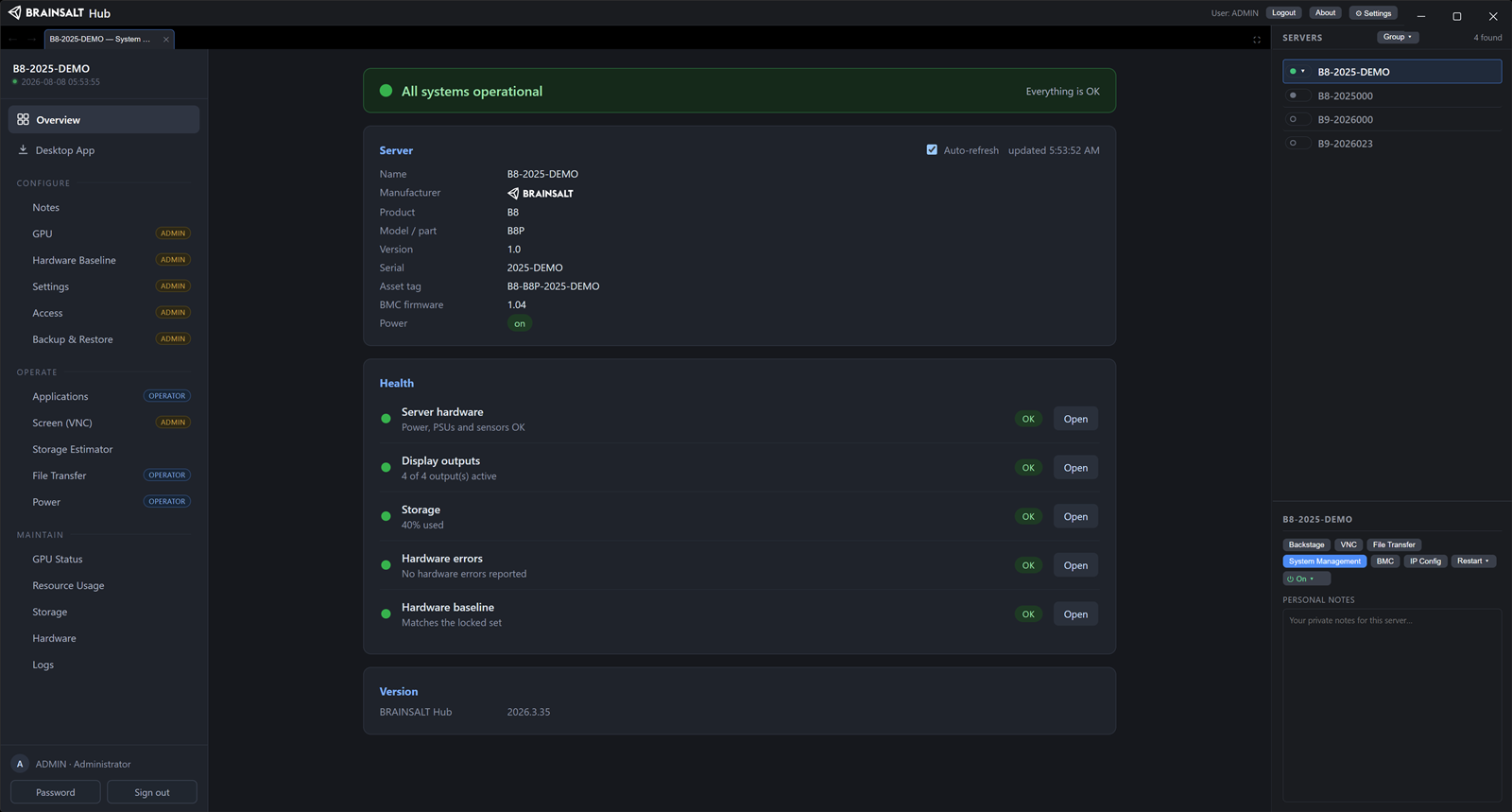
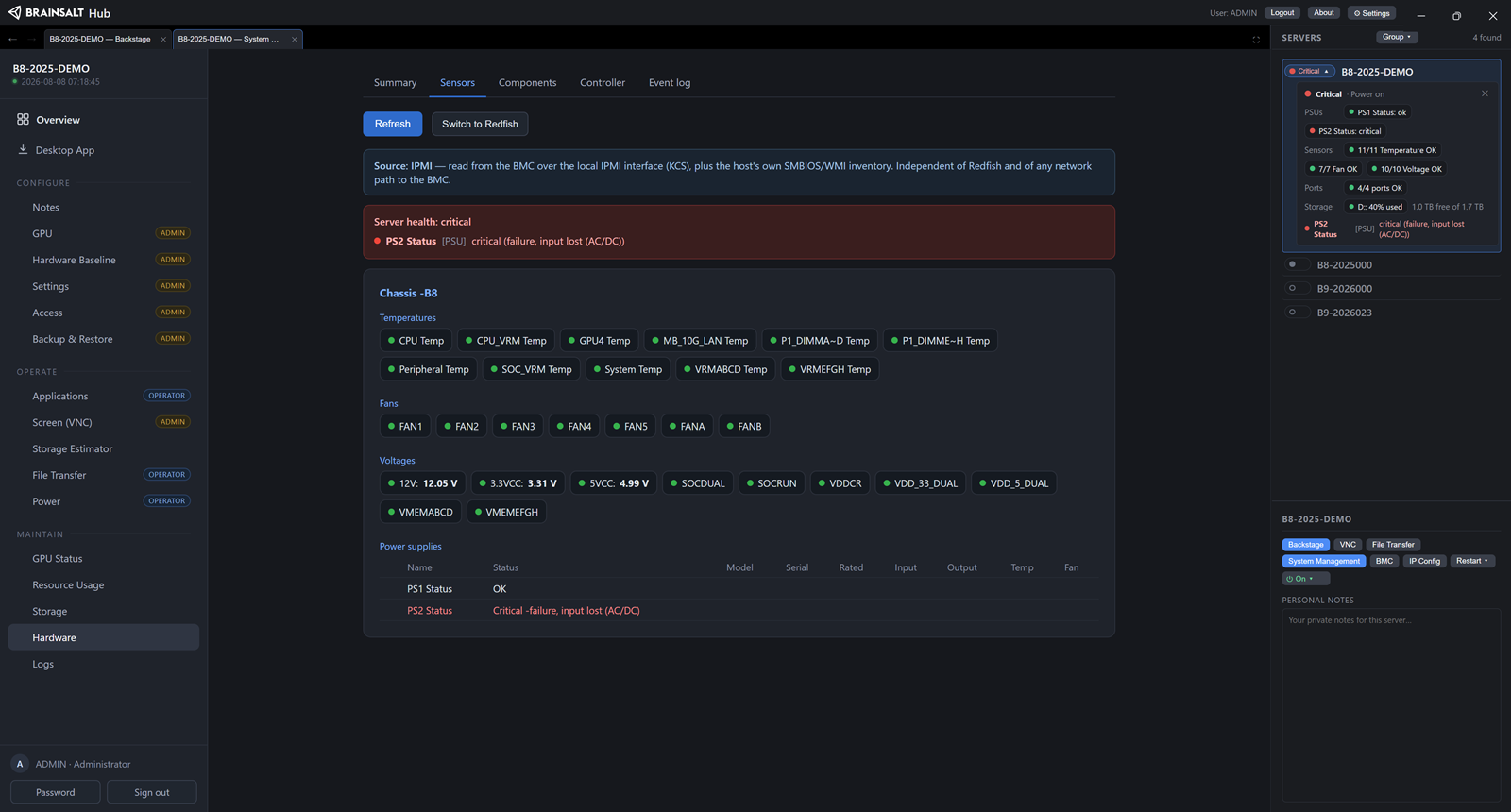
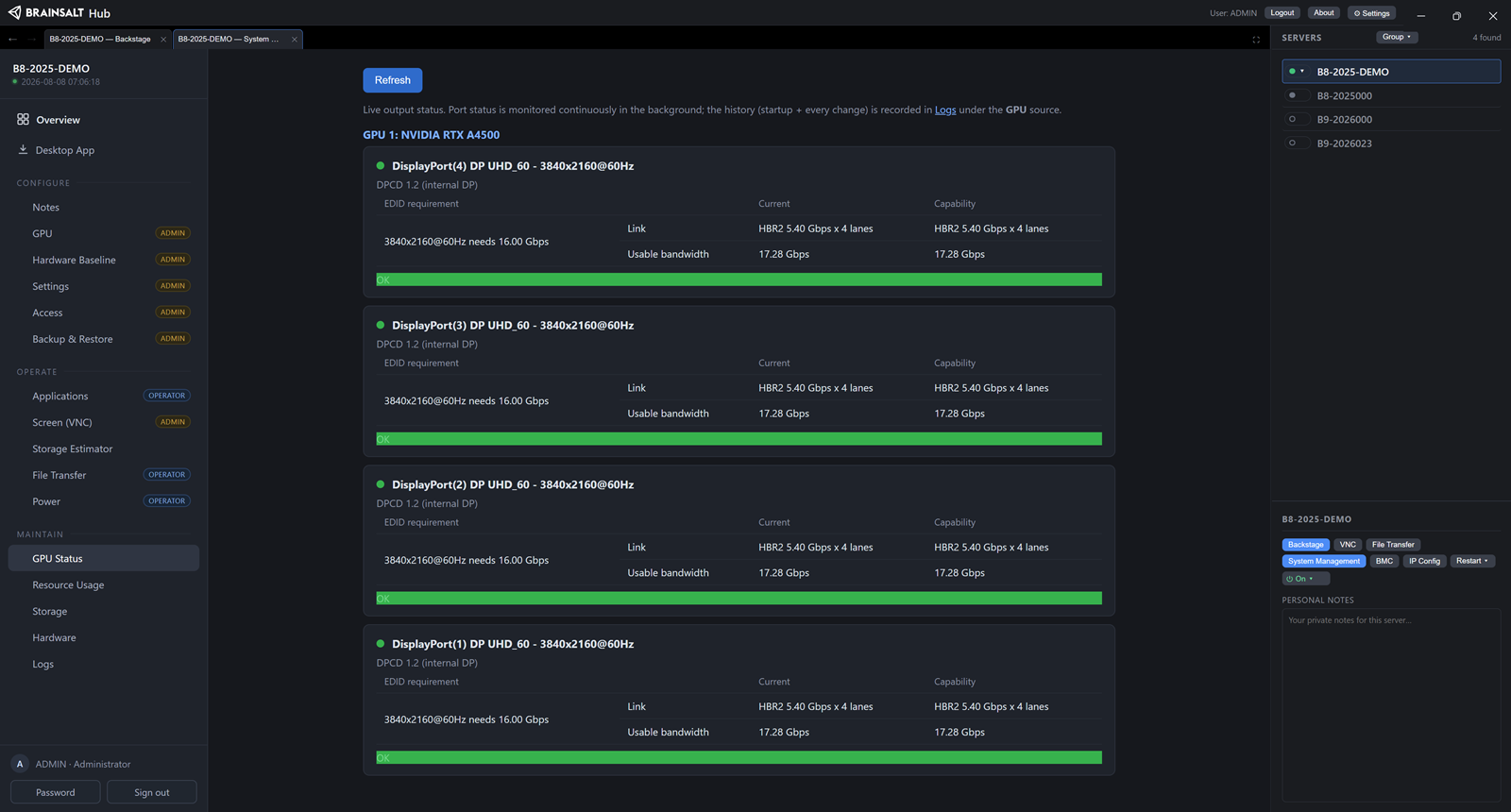
A rollup, then the detail behind it. Power supplies chip by chip. Sensors summarized per category. Per-output link state with a bandwidth verdict on the connector. Media-drive space, and the running time that leaves for the content settings held on the server. A hardware baseline that flags any component added or missing against the captured reference.
Status is read from the server’s own sensors and management controller, so it is available from the moment the machine has power. In the Desktop App the same rollup is a badge on every row.
Startup
On boot the server applies its stored settings — display topology, addresses, system behavior — then starts the applications configured for it, normally Backstage with that system’s parameters. The configuration is on the server and it is what the server replays; nothing depends on anyone remembering how the machine was set up. Operators start, stop and restart those applications from the Applications page, which reports current state.
Backup and restore
The whole server configuration exports as a single file, optionally passphrase-protected, and restores selectively. Network settings come back for review rather than being applied, so restoring a backup cannot overwrite a working network configuration.
Fleet control
Servers group by rack, theater or projection zone. A group header carries the powered-on count and a rolled-up health dot. Power on, off, cycle and restart apply to a whole selection after one confirmation, tiered by consequence. The actions run through each server’s management controller, which is reachable while the server is off. A weekly schedule powers a group up ahead of opening and shuts it down after close, with every action and retry in an activity log.
Control system integration
A third-party show-control system can read health and status from every server — overall state, power supplies, sensors and temperatures, per-output link state — and drive power across the fleet, with applications and display controllable per server. It subscribes once and the servers push updates continuously, so the control system holds a live picture instead of polling for one.
Off by default. An optional shared token and an address allowlist secure it when enabled.
Storage planning
A storage estimator on the server converts content settings — resolution, frame rate, stream count — into capacity and running time, before there is content to measure.
Backstage in the Hub
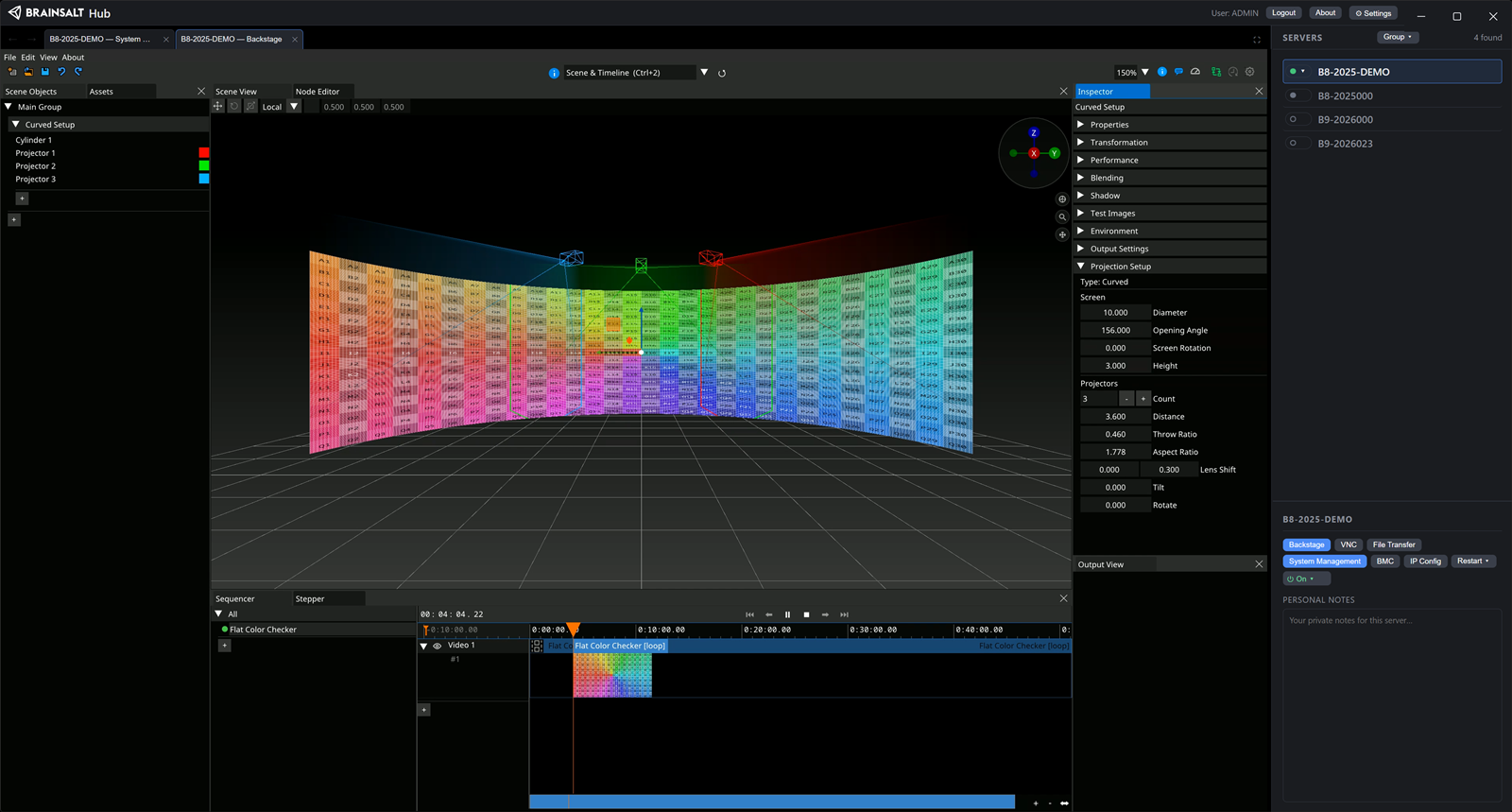
Backstage streams its own interface to the Hub, in the browser or in the Desktop App. That makes the Desktop App the single place that reaches every part of a server — configuration, health, power, and the media application running on it.
Specifications
Roles
Enforced by the server on every request, not only hidden from the menu.
| Role |
What it covers |
| User |
Read and monitor — overview, GPU status, resource usage, storage, hardware, logs, notes, web consoles |
| Operator |
The above, plus operate — applications, file transfer, power actions, remote interfaces |
| Administrator |
Everything, including every configuration page and remote desktop control |
Up to 15 accounts per server, always at least one administrator. The minimum role needed to use the interface at all is itself configurable.
Configuration coverage
| Area |
What is covered |
| Network |
Per-adapter static or DHCP, host name, adapter renaming, management-controller address and VLAN tag |
| Access |
User accounts, roles, password resets |
| Displays |
EDID force, import and generation; Mosaic grids; per-output format, bit depth and dynamic range; virtual monitors; desktop membership; genlock with a frame-synchronization board; full display reset |
| Applications |
The application slots the server starts, their position and lockdown, start / stop / restart |
| Storage and media |
Media-drive capacity, storage estimator, browser file manager, an on-demand file share, watch-folder conversion presets |
| Backup |
The whole server configuration exported as one file, optionally passphrase-protected; selected blocks restored. Site-specific network settings are returned for review rather than applied |
| Hardware |
Inventory with per-item health, sensors, firmware, controller event log, CSV export, hardware baseline, latched hardware-error state cleared by an administrator, virtual media for installation and recovery |
| Power |
Chassis power actions, restart of the system or of the core software |
| Remote access |
Remote interfaces published by the software on the server, operator web consoles, remote desktop, and the management controller’s own console |
| Logs |
Service, application and system logs aggregated and downloadable |
Platforms and interfaces
| Brainsalt Hub Desktop App |
Windows, macOS (universal binary), Linux (AppImage, tar.gz, deb, rpm; x64 and arm64) |
| Browser route |
Any browser on the server’s network, over HTTPS. The server’s certificate can be downloaded and trusted, so no browser warning is shown |
| Discovery |
Finds servers on the wired network whatever address they hold, including across subnets. Every change is authenticated |
| Sign-in |
One login per user across the fleet; each server opens without a second prompt. Stored credentials are protected by the operating system |
| Control system integration |
Health, status and power for third-party control systems, per server and fleet-wide, with a continuous pushed feed. Off by default; optional shared token and address allowlist |
| Chassis power |
On, off, cycle and restart through each server’s management controller, over Redfish. The controller is reachable while the server is off |
| Health source |
The server’s own sensors and management controller, independent of the media application |
| Front panel |
A touch panel on the chassis for identity, network addresses, health and restart or shutdown at the rack |
Servers must be installed in a dust-free environment.
Support
Each server collects its service and application logs into a single download, and commissioning notes stay on the server rather than in an email thread. A question reaches our support with the evidence already attached.
Download Brainsalt Hub
The Brainsalt Hub Desktop App is available for Windows, macOS and Linux. Download the Desktop App.
